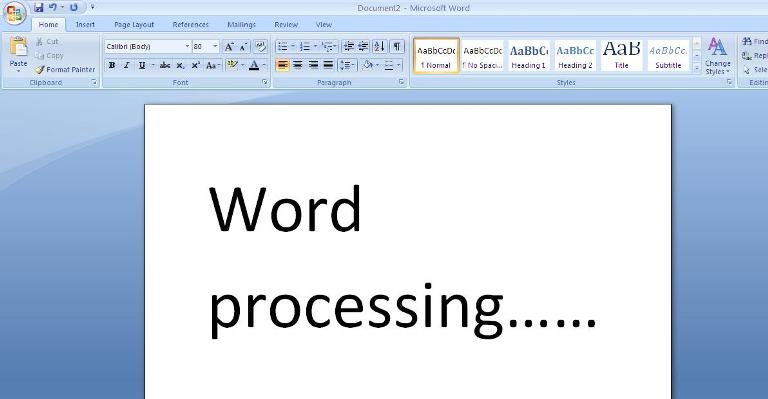
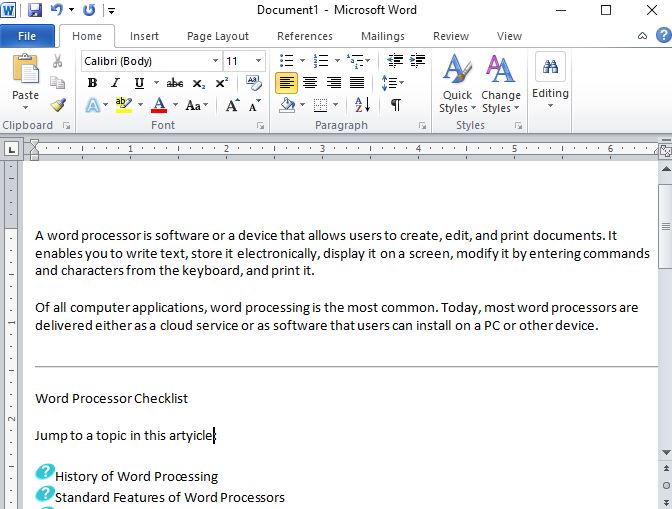
WORD PROCESSOR is an electronic device or computer software application that performs the task of composing, editing, formatting, and printing of documents .
EXAMPLES OF WORD PROCESSORS :
OPENOFFICE WRITER LIBREOFFICE WRITER POLARIS OFFICE KINGSOFT WRITER WORDPERFECT WORDPAD MICROSOFT WORD .
-By the help of this we can now form a process correctly. This lesson can improve you more than you now,specifically by using Microsoft word. It is useful for making a letter etc.
I. Mail Merge and Label Generation
A. Mail Merge
One of the important reasons in using computers per se is its ability to do recurring tasks automatically. But this ability has to be honed by learning the characteristics and features of the software you use with your computer. After all, no matter how good or advance your computer and software may be, it can only be as good as the person using it.
Two Components of Mail Merge
1. Form Document
The first component of our mail merged document is the form document. It is generally the document that contains the main body of the message we want to convey or send. Also included in the form document is what we call place holders, also referred to as data fields or merge fields. This marks the position on your form document where individual data or information will be inserted.
2. List or Data File
The second component of our mail merged document is the list or data file. This is where the individual information or data that needs to be plugged in (merged) to the form document is placed and maintained. One of the best things about the mail merge feature is that it allows data file to be created fro within the Microsoft Word application itself, or it gets data from a file created in Microsoft Excel or other data formats.
B. Label Generation
Included in the mail merge feature on Microsoft Word is the Label Generator.
II. Integrating Images and External Materials
Integrating or inserting pictures in your document is fun and it improves the impression of your document.
A. Kinds of Materials
1. Pictures
Generally, these are electronic or digital pictures or photographs you have saved in any local storage device.
a. .JPG/JPEG
This is pronounced as “jay-peg“ and is the short form of .jpeg or Joint Photographic Experts Group.
b. .GIF
This stands for Graphics Interchange Format. This type of image file is capable of displaying transparencies.
c. .PNG
This is pronounced as “ping“. It stands for Portable Network Graphics.
2. Clip Art
This is generally a .GIF type; line art drawings or images used as generic representation for ideas and objects that you might want to integrate in your document.
3. Shapes
These are printable objects or materials that you can integrate in your document to enhance its appearance or allow you to have some tools to use for composing and representing ideas or messages.
4. Smart Art
Generally, these are predefined sets of different shapes grouped together to form ideas that are organizational or structural in nature.
5. Chart
Another type of material that you can integrate in your Word document that allows you to represent data characteristics and trends.
6. Screenshot
Sometimes, creating reports or manuals for training or procedures will require the integration of a more realistic image of what you are discussing on your report or manual.
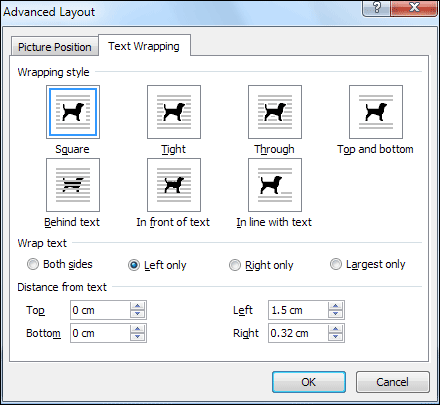
III. Image Placement
 teyaaang